
Scan Payload Tutorial
BigID can connect to hundreds of different data sources. Writing your own :connectors opens your system to scan anything. However, if you want to just scan a single piece of information, writing your own connector could be time intensive. The scan payload API allows you to scan single payloads of data into your system without a connector.
Enabling the Scan Payload API
Section titled “Enabling the Scan Payload API”Because the scan payload API allows your BigID system to scan arbitrary pieces of data, it requires an environment variable to be set. Environment variables can be set in the Advanced Tools screen located in Administration -> Advanced Tools. The scan payload API also requires the bigid-confluent service to be enabled during installation.
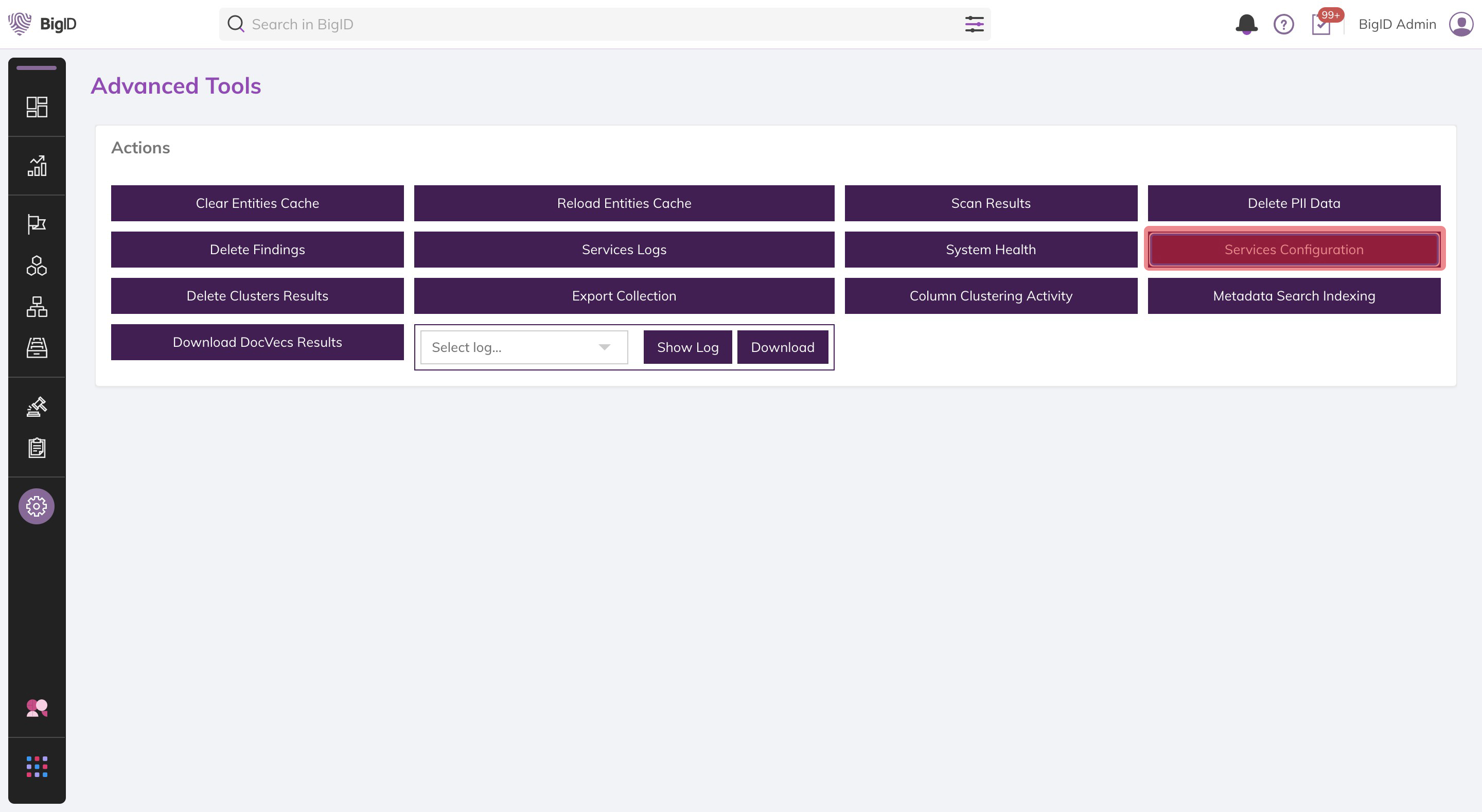
When you’ve reached this screen, press the Services Configuration button like in the screenshot below.
From this screen, search for the SCAN_API_ENABLED environment variable in the search box highlighted in the screenshot below.
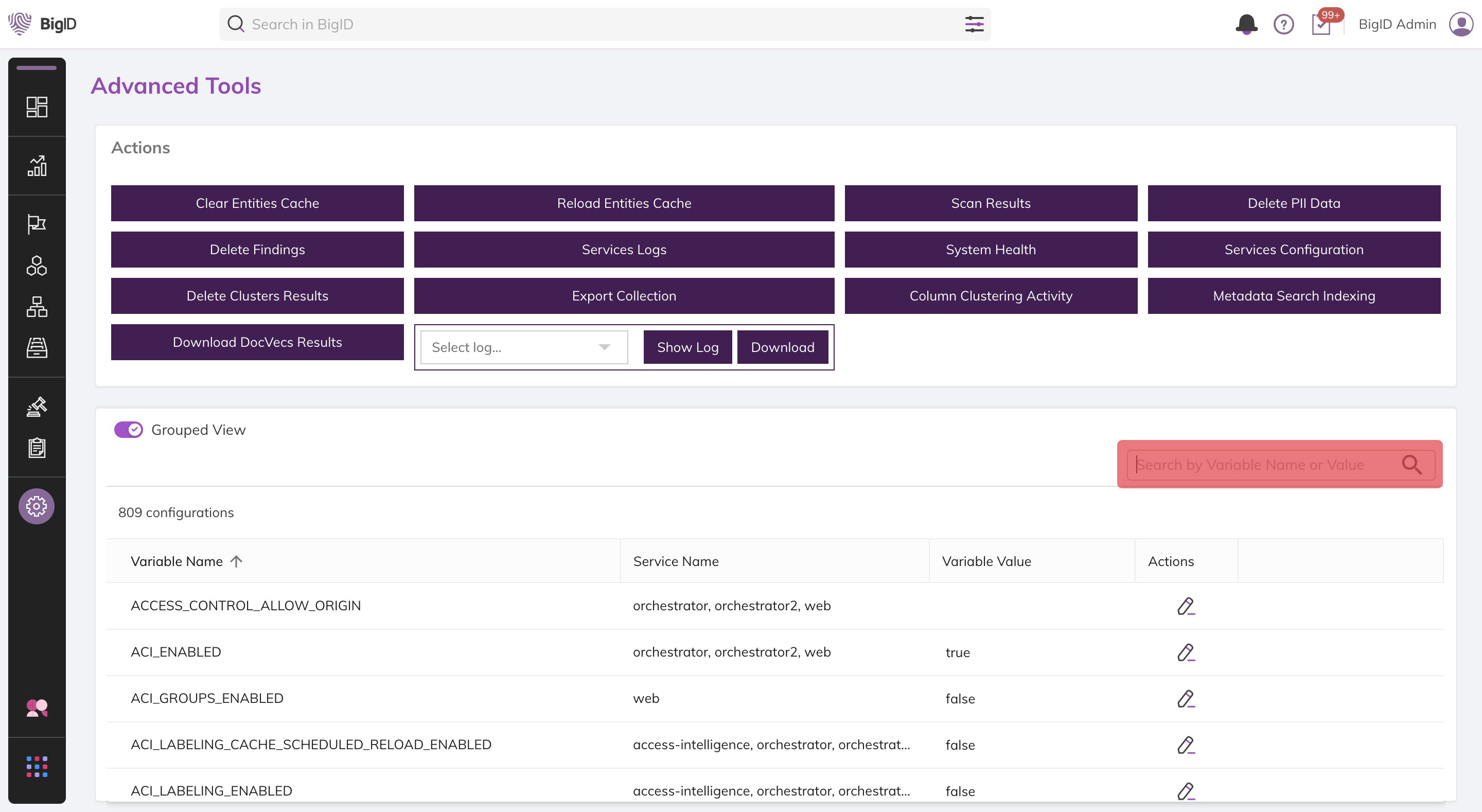
Press the pencil icon to edit the value of the SCAN_API_ENABLED setting.

Set the value to true and Save.
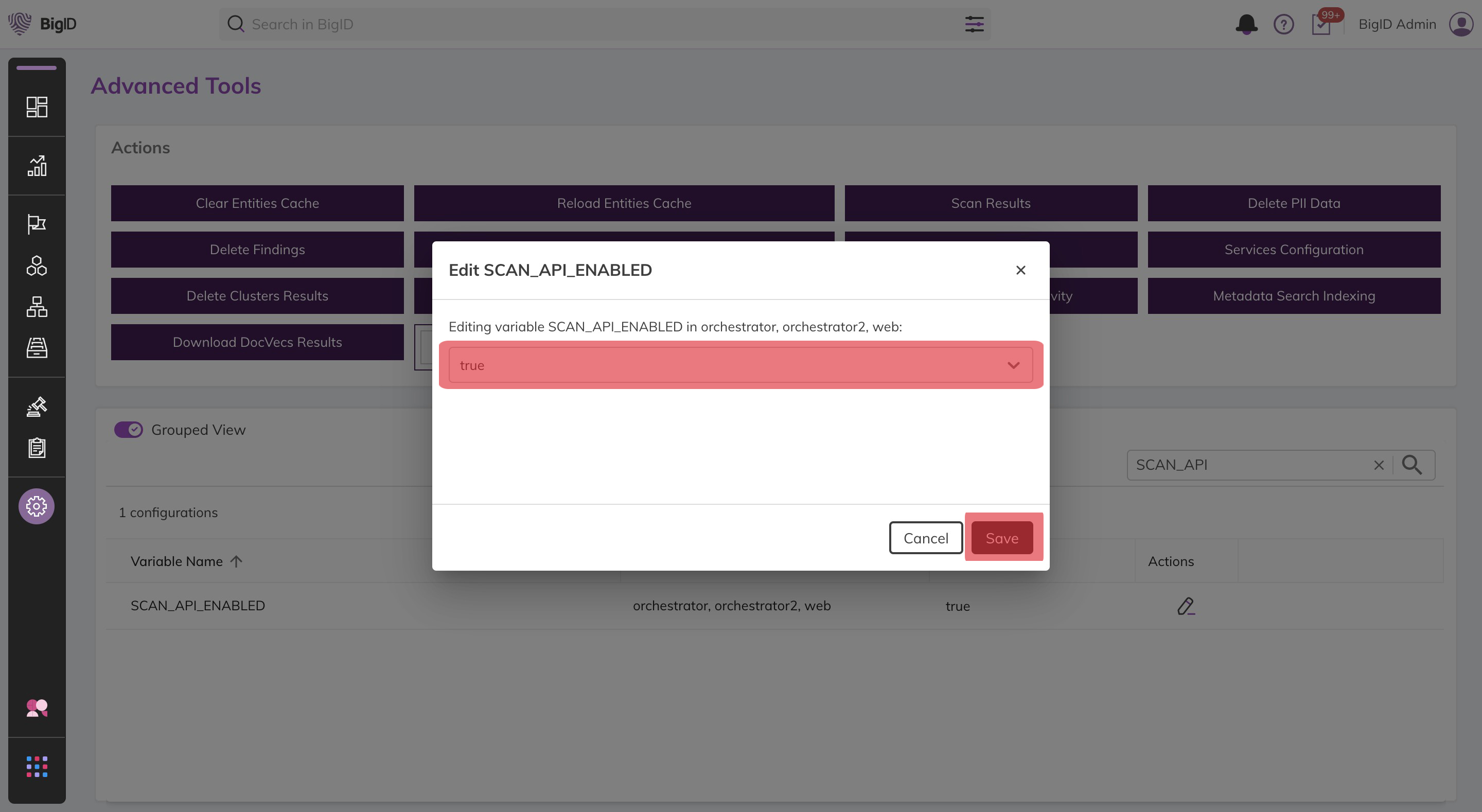
This value will now be persisted until the next restart of BigID. To perform the steps above inside the developer sandbox for this exercise, execute the sandbox action below.

Enable Scan API
Click the button to the right to run the workflow "Enable Scan API" on the BigID developer sandbox system. This will not affect your personal or organization's BigID system.
Enabling The API Scanner
Section titled “Enabling The API Scanner”The Scan API works similarly to data in motion. We need to start a scan that will operate continuously waiting for new items to come in via the scan API. When we enabled the scan API a new scan profile named “scan-api-default-profile” was created. Let’s start a scan on this new profile.
Sending Data to the Scan Payload API
Section titled “Sending Data to the Scan Payload API”Now that we’ve enabled the API, sending data to be scanned is easy. Just send the data and a name to store the scan results under to BigID.
Seeing Results
Section titled “Seeing Results”Now that your payload has been scanned, you can see the results in the BigID Catalog. See the Metadata Export Tutorial for information on how to see the results.
All rights reserved.